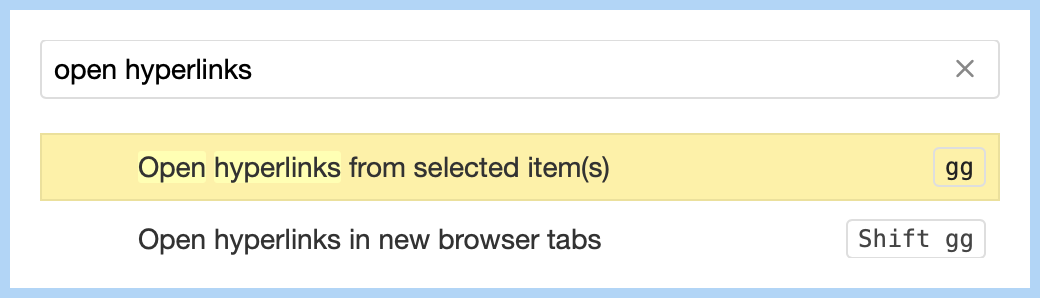
Since linking is now even more fun, I have a comment on the “Open hyperlinks” dialog.
The dialog looks like this:
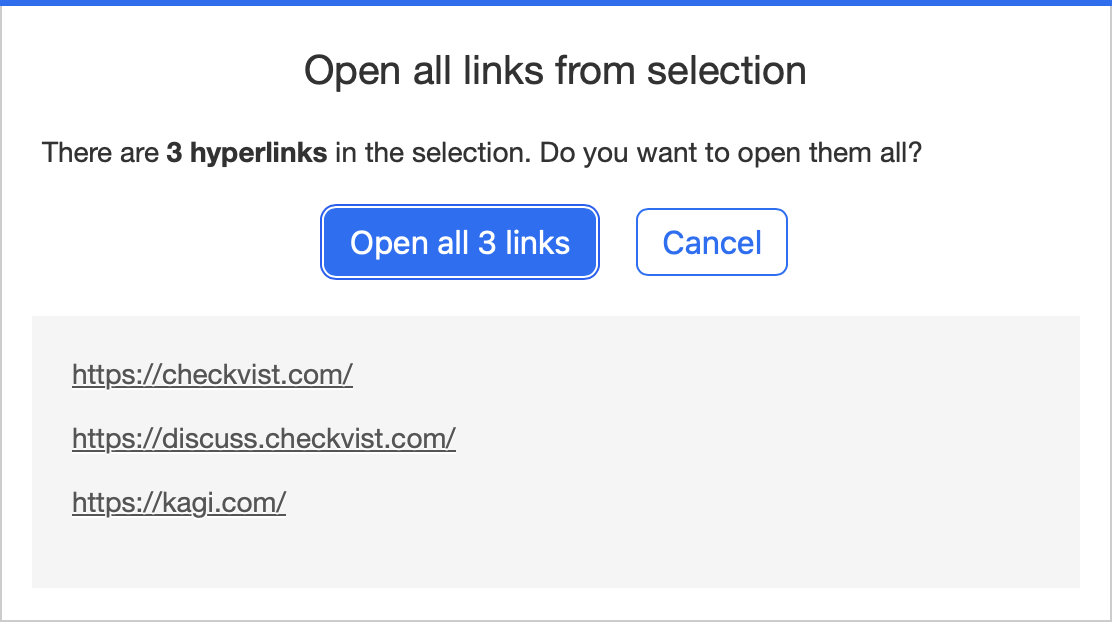
(1) Choosing between “Open All” and “Cancel” is done via the left and right arrow keys. I think it would be a good accessibility improvement to have the Tab key do this as well.
(2) The styling of the buttons is slightly confusing. When the dialog opens:
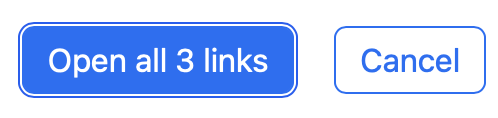
Hovering “Open all” shows both buttons white:
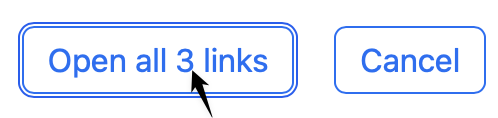
Hovering “Cancel” shows both buttons blue:

Pressing the right arrow moves the border (but not the background color):
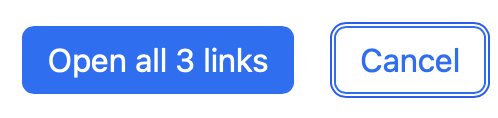
Maybe the “Open all” button should start with a white background and turn blue only on hover, like the “Cancel” button. (Border = keyboard selection, blue = pointing device selection.)
(3) Intuitively, when I want to select and open a single link, I press the Down key, but that does not work, so I need to use a pointing device. A quick keyboard selection of a link would be handy.
I don’t know whether you implemented Checkvist in a way that allows this, but it would be most “checkvisty” if the link list were a “real” Checkvist list that lets me interact in the usual Checkvist way: arrows for navigation, range selection, multi-select, maybe even copy, export, sort. The only difference is that gg or Shift gg would immediately open what is selected (and not recursively open the dialog).  No, really, a single choice would already help.
Addition: After having written Clearing the #from-email tag , I might add that the tag list in ct would also suffice for selecting a (single) link.